
Build a Slack data analyst bot with Claude Managed Agents
Introduction
You'll wrap the agent from data_analyst_agent.ipynb(opens in new tab) in a Slack bot built with Bolt for Python(opens in new tab), Slack's official framework for building apps. Mention the bot with a question and a CSV attachment to get a narrative report posted back to the thread. Follow-up messages continue the same session.
What you'll learn
- Kick off an agent run from a Slack mention
- Show the agent's progress as thread updates
- Post the finished report back to the thread
- Keep the conversation going with follow-up replies
Prerequisites
-
Run the install cell below.
-
Create a Slack app(opens in new tab): choose Create New App → From a manifest, paste
slack_app_manifest.yaml(opens in new tab), and install it to your workspace. The manifest enables Socket Mode (Slack delivers events over a WebSocket, so you don't need a public URL) and the required scopes. Then grab two tokens:- OAuth & Permissions → copy the Bot User OAuth Token (
xoxb-...) - Basic Information → App-Level Tokens → generate one with scope
connections:write(xapp-...)
In a channel you want the bot in, run
/invite @databot. - OAuth & Permissions → copy the Bot User OAuth Token (
-
Run
data_analyst_agent.ipynb(opens in new tab), which savesANALYST_ENV_ID,ANALYST_AGENT_ID, andANALYST_AGENT_VERSIONto.env.
The setup cell below prompts for your Slack tokens and saves them to .env so you don't re-enter them on restart (or add them to .env beforehand to skip the prompt). .env is already in .gitignore – never commit it to version control. If you don't have a Slack workspace handy you can still read through the code – each section explains what it does – but you'll need one to run the bot.
1. Start a session when the bot is mentioned
Bolt passes an ack callback into every handler; calling it tells Slack the event was received. Slack retries anything not acknowledged within three seconds(opens in new tab), so on_mention calls ack() immediately and hands the slow work (file upload, session creation, streaming) to start_analysis on a background thread.
Each mention creates a session you can open in the Console(opens in new tab) under Sessions to watch the full trace.
2. Relay progress and results to the thread
The relay_stream function defined below is the bridge between the two APIs: it reads from the Anthropic session event stream and posts to Slack. It loops until the agent goes idle, then posts the final summary and uploads any files the agent wrote.
files.list(scope_id=...) returns every file in the session – both the CSV we uploaded and anything the agent wrote. We filter to downloadable == True so only agent-generated outputs (the report, charts) get posted back to Slack, not the user's own input.
3. Handle follow-ups in the same session
A reply in the thread becomes another turn in the existing session – you don't need to @mention the bot again. The container filesystem and conversation history persist across turns.
4. Run the bot
The cell below connects to Slack and starts listening. It blocks while the bot runs – stop it with the ■ interrupt button when you're done.
In any channel the bot is in, mention it with a CSV attached. It posts progress, then the summary and report.html in the thread:
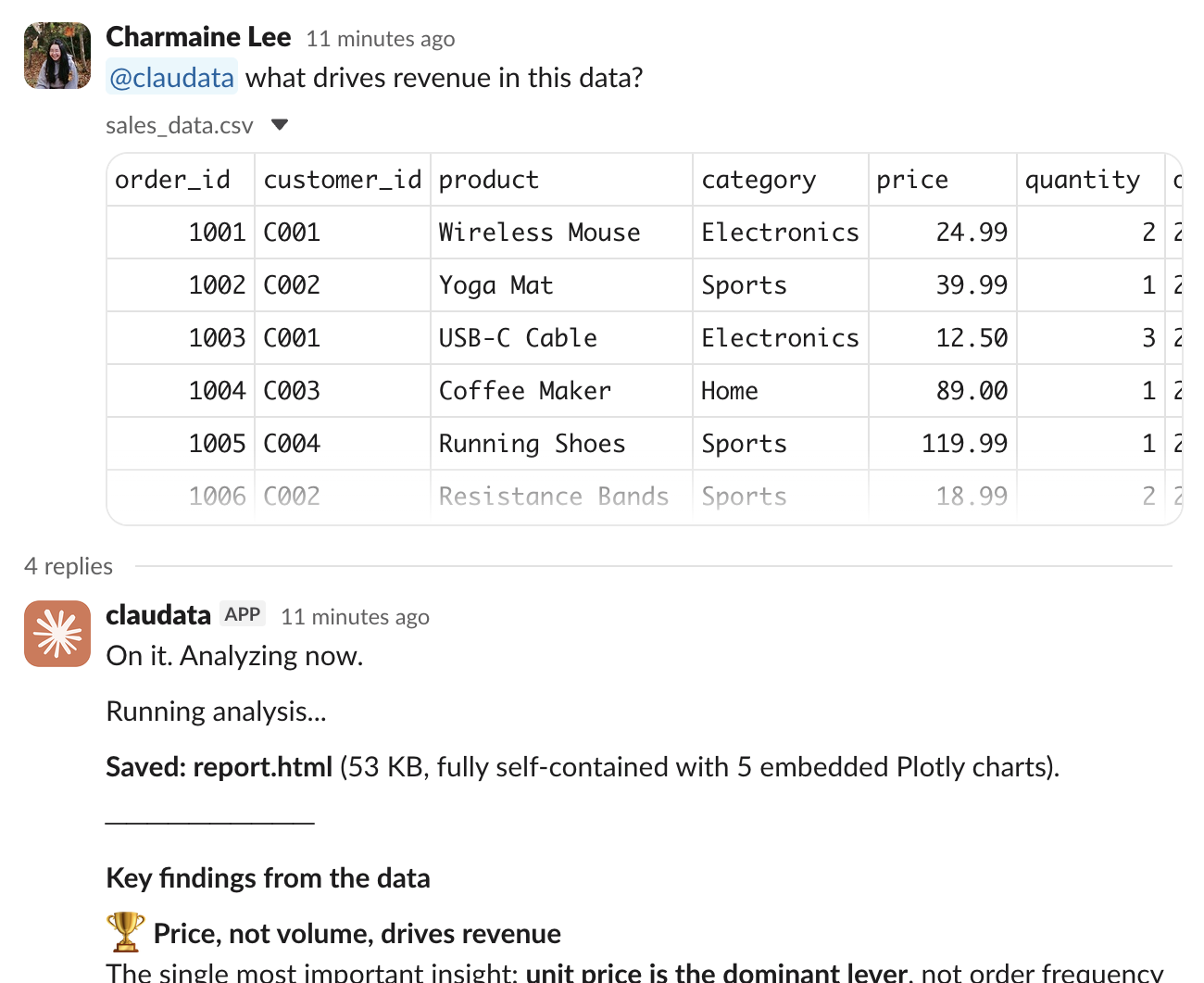
Reply in-thread to go deeper on the same data.
Next steps
You've wrapped the analyst agent in a Slack bot: mentions start a session, the event stream relays progress to the thread, outputs get uploaded, and replies continue the same conversation.
- Swap the agent's system prompt in
data_analyst_agent.ipynb(opens in new tab) to change its analysis style. Re-running that notebook creates a new agent and saves its ID to.envfor the bot to pick up. - Persist
thread_sessionsto a database so conversations survive bot restarts. - Move the bot out of this notebook: copy the code to a
.pyfile and deploy it anywhere that can hold a long-lived WebSocket connection.