---
title: Configure Azure Key Vault for CMEK
url: https://platform.claude.com/docs/en/manage-claude/cmek-azure-key-vault
description: Use Azure Key Vault to provide an encryption key for your organization.
---
Let Claude Code set up this feature for you
```text
/claude-api help me configure a customer-managed encryption key with Azure Key Vault
```
This guide shows how to use an Azure Key Vault key as a [customer-managed encryption key (CMEK)](https://platform.claude.com/docs/en/manage-claude/cmek) for your Anthropic organization.
Enabling CMEK is permanent. If your Key Vault key is deleted or disabled, Anthropic cannot recover the data encrypted under it. Review the [warnings and limitations](https://platform.claude.com/docs/en/manage-claude/cmek) before you start.
## Prerequisites
* An Azure Key Vault with these settings:
* RBAC authorization is enabled (`enableRbacAuthorization: true`).
* Public network access is allowed. Private endpoints are not supported.
* Purge protection is enabled (`enablePurgeProtection: true`). You can't turn off purge protection after you enable it.
* Diagnostic settings route the `AuditEvent` log category to Log Analytics, a storage account, or an event hub. Without them, you have no audit trail of Anthropic's key operations, such as `KeyWrap`, `KeyUnwrap`, and `KeyGet`.
* Permissions to create keys in the vault and to assign RBAC roles on it.
* Permissions to create service principals in your Entra tenant (`Application Administrator`, `Cloud Application Administrator`, or an equivalent custom role).
* The [`az` CLI](https://learn.microsoft.com/en-us/cli/azure/?view=azure-cli-latest) installed and authenticated, or Cloud Shell in the Azure portal. Some steps have no portal equivalent.
* To register the key through the API, an Anthropic Admin API key for your organization.
## Anthropic app information
You give the following Anthropic multitenant application access to your key. The application requests no Microsoft Graph permissions.
| Field | Value |
| ------------------------------ | -------------------------------------- |
| Multitenant app client ID (US) | `8635ae1a-3e5d-44e8-a4ed-e0f614466f87` |
| App display name | `anthropic-cmek-client-us` |
Use only this published client ID and display name. Never trust an identifier provided over email, chat, or any onboarding channel.
## Encryption key setup
The key must meet these requirements:
* **Type:** RSA, 3072-bit or larger. For an HSM-backed key, use `RSA-HSM`, which requires a Premium-SKU vault.
* **Permitted operations:** `wrapKey` and `unwrapKey`. The steps in this guide turn off every other operation, so Anthropic can only read the key and wrap and unwrap with it.
* **Organization tag:** `anthropic-org-` with the value `true`. Replace `` with your Anthropic organization ID in lowercase. Validation fails without the tag.
* **Access:** the `Key Vault Crypto User` role for Anthropic's service principal, assigned on the key.
**Finding your organization ID:** Use the bare UUID, not the `org_`-prefixed ID. Copy it from one of these places:
* **Claude Console:** the **Organization ID** field on the [Organization](https://platform.claude.com/settings/organization) page (`platform.claude.com/settings/organization`)
* **claude.ai:** the **Organization ID** field under **Organization settings > Organization**
* **Admin API:** the `id` field from the [Organization Info](https://platform.claude.com/docs/en/api/organization/retrieve) endpoint
### Create the key and grant access
Open Cloud Shell from the portal's top navigation bar. Run this command:
```bash
az ad sp create --id 8635ae1a-3e5d-44e8-a4ed-e0f614466f87
```
If the service principal already exists, continue to the next step.
Go to **Microsoft Entra ID > Enterprise applications** and clear the default application-type filter. Search for `anthropic-cmek-client-us`.
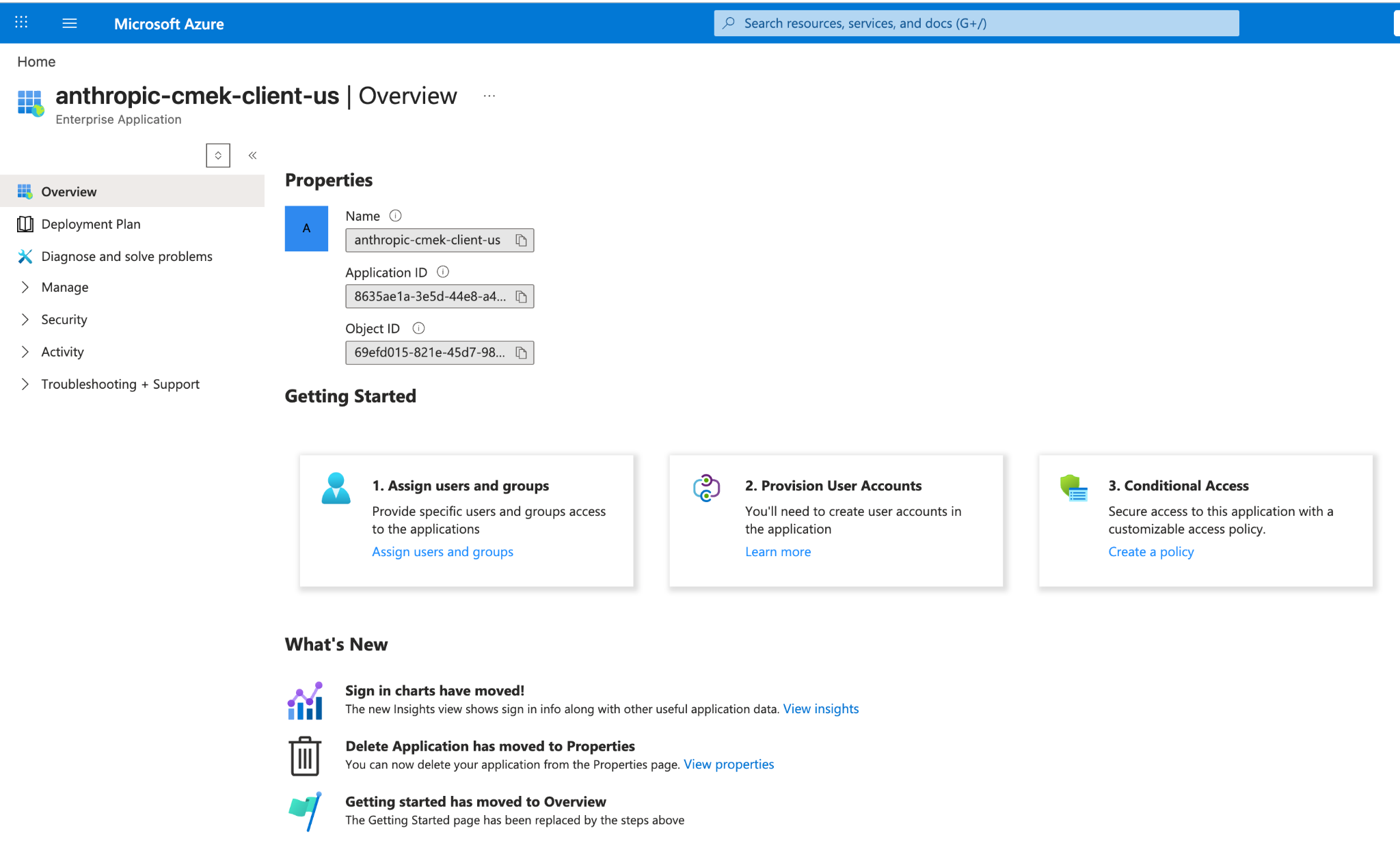
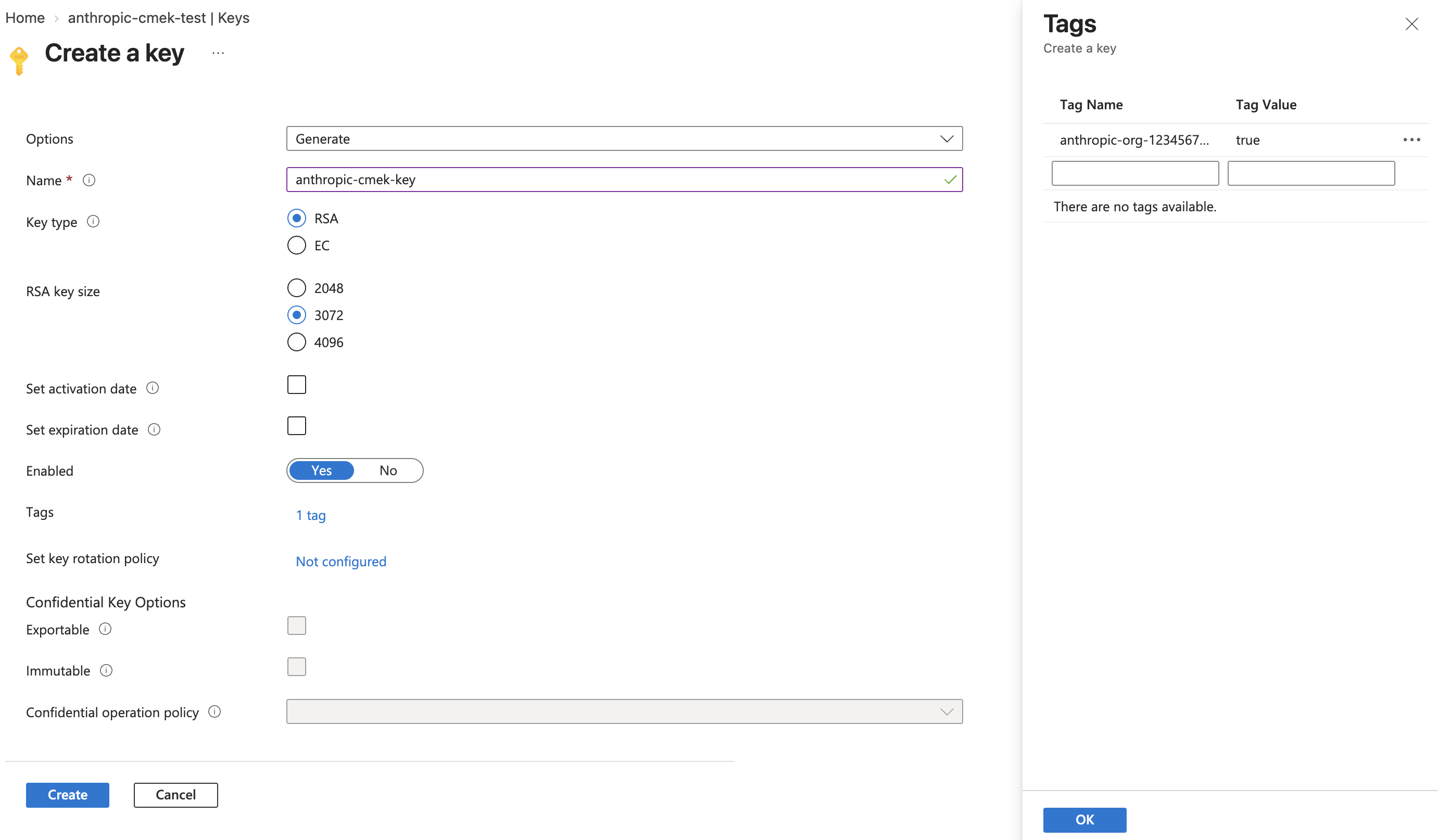
Open your key vault and select **Keys**. Click **Generate/Import**.
Set these values:
* **Name:** a name for the key
* **Key type:** RSA
* **RSA key size:** 3072 or larger
Click the link next to **Tags**.
Enter these values:
* **Tag Name:** `anthropic-org-`
* **Tag Value:** `true`
Click **OK**, then click **Create**.
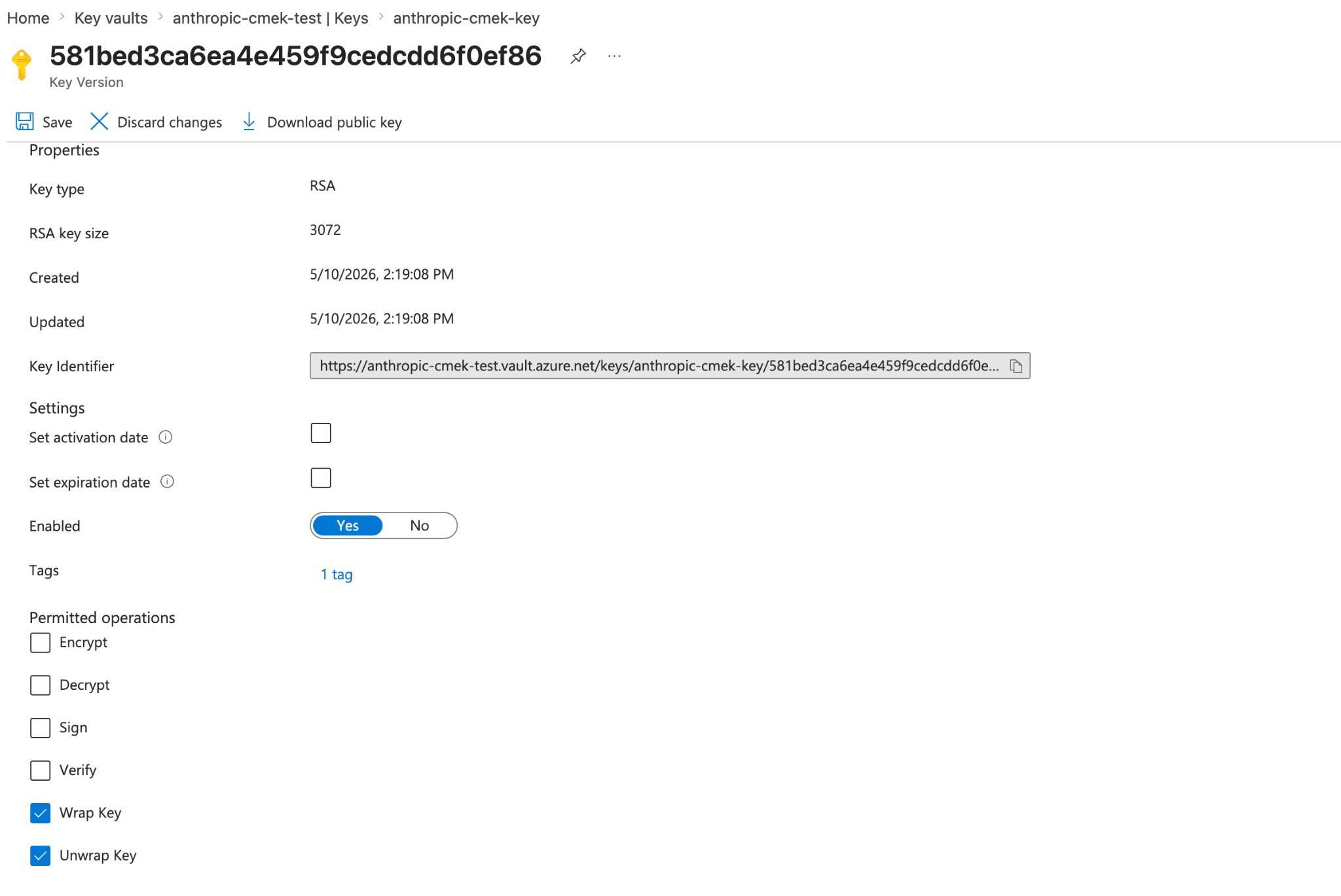
Open the new key, then open its current version. Under **Permitted operations**, clear every checkbox except **Wrap Key** and **Unwrap Key**. Click **Save**.
Open the key itself, not the vault. Select its **Access control (IAM)** tab and click **Add > Add role assignment**.
On the **Role** tab, select **Key Vault Crypto User**. Click **Next**.
On the **Members** tab, click **Select members**. Search for `anthropic-cmek-client-us` and select it. Click **Select**, then click **Next**.
On the **Review + assign** tab, click **Review + assign**.
To use a key you already have, follow these steps instead of steps 3 to 6, then continue from step 7:
1. In your key vault, select **Keys** and open the key. Open its current version.
2. Click the link next to **Tags**.
3. Add the organization tag and click **OK**.
4. Under **Permitted operations**, clear every checkbox except **Wrap Key** and **Unwrap Key**.
5. Click **Save**.
```bash
az ad sp create --id 8635ae1a-3e5d-44e8-a4ed-e0f614466f87
```
Copy the `id` field from the output.
If the command exits with an "already exists" error, get the `id` with this command instead:
```bash
az ad sp show --id 8635ae1a-3e5d-44e8-a4ed-e0f614466f87 --query id -o tsv
```
```bash
az keyvault key create \
--vault-name \
--name \
--kty RSA --size 3072 \
--ops wrapKey unwrapKey \
--tags anthropic-org-=true
```
Replace the placeholders:
* **``:** the name of your key vault
* **``:** a name for the key
* **``:** your Anthropic organization ID in lowercase
For an HSM-backed key, use `--kty RSA-HSM`.
```bash
VAULT_ID=$(az keyvault show --name --query id -o tsv)
az role assignment create \
--role "Key Vault Crypto User" \
--assignee-object-id \
--assignee-principal-type ServicePrincipal \
--scope "${VAULT_ID}/keys/"
```
Replace the placeholders:
* **``:** the name of your key vault
* **``:** the `id` value from the first step
* **``:** the name of the key
To use a key you already have, run this command instead of step 2:
```bash
az keyvault key set-attributes \
--vault-name \
--name \
--ops wrapKey unwrapKey \
--tags anthropic-org-=true
```
This replaces the version's existing tags. Add each existing tag to `--tags` as `name=value`.
**Optional:**
* To share one key among several Anthropic organizations, add one organization tag for each. A key version can carry at most 15 tags, including your own.
* If the vault holds only this key, you can assign the role on the vault instead of the key.
### Check your vault configuration
Run this command with the Azure CLI or in Cloud Shell. Replace `` with the name of your key vault.
```bash
az keyvault show --name \
--query "{rbac:properties.enableRbacAuthorization, purge:properties.enablePurgeProtection, pub:properties.publicNetworkAccess, net:properties.networkAcls.defaultAction, ipRules:properties.networkAcls.ipRules, uri:properties.vaultUri, tenantId:properties.tenantId}"
```
Confirm these values:
* `rbac`: `true`
* `purge`: `true`. If it's `false` or `null`, enable purge protection before you continue.
* `pub`: `"Enabled"`. If it's `"Disabled"`, turn on public network access.
* `net`: `"Allow"`, or `"Deny"` with Anthropic's outbound IP ranges in `ipRules`. For the ranges, see [Outbound IP addresses](https://platform.claude.com/docs/en/api/ip-addresses#outbound-ip-addresses).
Copy these values to register the key:
* `uri`: the vault URI
* `tenantId`: the ID of the tenant that governs the vault
## Register the key with Anthropic
In the Claude Console, go to the [Data retention](https://platform.claude.com/settings/privacy#encryption-keys) page (`platform.claude.com/settings/privacy`). If you don't see **Encryption keys**, select **Organization** from the dropdown menu at the top of the page.
Under **Encryption keys**, click **Add key**. Enter a **Display name** and select **Azure Key Vault**. Click **Continue**.
The dialog box shows an **Organization tag**. Check that your key has this tag. Enter these values:
* **Vault URI:** the `uri` value that you copied
* **Key name:** the name of the key
* **Tenant ID:** the `tenantId` value that you copied
Click **Add**.
In the **Encryption keys** list, click **Verify** next to the key. **Connected** appears when the check passes. If it fails, see [Troubleshoot validation](https://platform.claude.com/docs/en/manage-claude/cmek-azure-key-vault#troubleshoot-validation) for common causes.
Attaching a key can't be undone. If you can, attach it to a new workspace before that workspace receives any requests. In a workspace that already receives requests, the key can take [up to a day to take effect](https://platform.claude.com/docs/en/manage-claude/cmek#how-it-works).
On the Data retention page, select the workspace from the dropdown menu at the top of the page. Under **Encryption key**, select the key and click **Save**.
Select the checkbox to confirm that you have read the CMEK documentation, then click **Confirm**.
Replace the placeholders:
* **``:** a display name for the key
* **``:** the name of your key vault
* **``:** the name of the key
* **``:** the `tenantId` value that you copied
```bash cURL
curl -sS "https://api.anthropic.com/v1/organizations/external_keys" \
-H "x-api-key: $ANTHROPIC_API_KEY" \
-H "anthropic-version: 2023-06-01" \
-H "content-type: application/json" \
-d '{
"display_name": "",
"geo": "us",
"provider_config": {
"type": "azure",
"vault_uri": "https://.vault.azure.net/",
"key_name": "",
"tenant_id": ""
}
}'
```
```bash CLI
ant organization:external-keys create <<'YAML'
display_name: ""
geo: us
provider_config:
type: azure
vault_uri: "https://.vault.azure.net/"
key_name: ""
tenant_id: ""
YAML
```
```python Python
client = anthropic.Anthropic()
external_key = client.organization.external_keys.create(
display_name="",
geo="us",
provider_config={
"type": "azure",
"vault_uri": "https://.vault.azure.net/",
"key_name": "",
"tenant_id": "",
},
)
print(f"id: {external_key.id}")
print(f"display_name: {external_key.display_name}")
```
```typescript TypeScript
const client = new Anthropic();
const externalKey = await client.organization.externalKeys.create({
display_name: "",
geo: "us",
provider_config: {
type: "azure",
vault_uri: "https://.vault.azure.net/",
key_name: "",
tenant_id: ""
}
});
console.log(`id: ${externalKey.id}`);
console.log(`display_name: ${externalKey.display_name}`);
```
```csharp C#
using Anthropic.Models.Organization.ExternalKeys;
AnthropicClient client = new();
var externalKey = await client.Organization.ExternalKeys.Create(new()
{
DisplayName = "",
Geo = Geo.Us,
ProviderConfig = new AzureExternalKeyConfigParam
{
VaultUri = "https://.vault.azure.net/",
KeyName = "",
TenantID = ""
}
});
Console.WriteLine($"id: {externalKey.ID}");
Console.WriteLine($"display_name: {externalKey.DisplayName}");
```
```go Go
client := anthropic.NewClient()
externalKey, err := client.Organization.ExternalKeys.New(context.Background(), anthropic.OrganizationExternalKeyNewParams{
DisplayName: anthropic.String(""),
Geo: anthropic.OrganizationExternalKeyNewParamsGeoUs,
ProviderConfig: anthropic.OrganizationExternalKeyNewParamsProviderConfigUnion{
OfAzure: &anthropic.AzureExternalKeyConfigParam{
VaultURI: "https://.vault.azure.net/",
KeyName: "",
TenantID: "",
},
},
})
if err != nil {
log.Fatal(err)
}
fmt.Printf("id: %s\n", externalKey.ID)
fmt.Printf("display_name: %s\n", externalKey.DisplayName)
```
```java Java
import com.anthropic.models.organization.externalkeys.AzureExternalKeyConfigParam;
import com.anthropic.models.organization.externalkeys.ExternalKeyCreateParams;
void main() {
AnthropicClient client = AnthropicOkHttpClient.fromEnv();
var params = ExternalKeyCreateParams.builder()
.displayName("")
.geo(ExternalKeyCreateParams.Geo.US)
.providerConfig(AzureExternalKeyConfigParam.builder()
.vaultUri("https://.vault.azure.net/")
.keyName("")
.tenantId("")
.build())
.build();
var externalKey = client.organization().externalKeys().create(params);
IO.println("id: " + externalKey.id());
IO.println("display_name: " + externalKey.displayName().orElseThrow());
}
```
```php PHP
use Anthropic\Organization\ExternalKeys\ExternalKeyCreateParams\Geo;
// ...
$client = new Client();
$externalKey = $client->organization->externalKeys->create(
displayName: '',
geo: Geo::US,
providerConfig: [
'type' => 'azure',
'vaultURI' => 'https://.vault.azure.net/',
'keyName' => '',
'tenantID' => '',
],
);
echo "id: {$externalKey->id}\n";
echo "display_name: {$externalKey->displayName}\n";
```
```ruby Ruby
client = Anthropic::Client.new
external_key = client.organization.external_keys.create(
display_name: "",
geo: :us,
provider_config: {
type: :azure,
vault_uri: "https://.vault.azure.net/",
key_name: "",
tenant_id: ""
}
)
puts "id: #{external_key.id}"
puts "display_name: #{external_key.display_name}"
```
The `id` field of the response contains the external key ID. Copy it for the next two steps:
```json
{
"type": "external_key",
"id": "ekey_",
"display_name": ""
}
```
Replace `ekey_` with the external key ID.
```bash cURL
curl -sS -X POST "https://api.anthropic.com/v1/organizations/external_keys/ekey_/validate" \
-H "x-api-key: $ANTHROPIC_API_KEY" \
-H "anthropic-version: 2023-06-01"
```
```bash CLI
ant organization:external-keys validate --external-key-id "ekey_"
```
```python Python
client = anthropic.Anthropic()
validation = client.organization.external_keys.validate("ekey_")
print(f"status: {validation.status}")
print(f"error: {validation.error}")
```
```typescript TypeScript
const client = new Anthropic();
const validation = await client.organization.externalKeys.validate("ekey_");
console.log(`status: ${validation.status}`);
console.log(`error: ${validation.error}`);
```
```csharp C#
AnthropicClient client = new();
var validation = await client.Organization.ExternalKeys.Validate("ekey_");
Console.WriteLine($"status: {validation.Status.Raw()}");
Console.WriteLine($"error: {validation.Error}");
```
```go Go
client := anthropic.NewClient()
validation, err := client.Organization.ExternalKeys.Validate(context.Background(), "ekey_")
if err != nil {
log.Fatal(err)
}
fmt.Printf("status: %s\n", validation.Status)
fmt.Printf("error: %s\n", validation.Error)
```
```java Java
AnthropicClient client = AnthropicOkHttpClient.fromEnv();
var validation = client.organization().externalKeys().validate("ekey_");
IO.println("status: " + validation.status().asString());
IO.println("error: " + validation.error().orElse(""));
```
```php PHP
$client = new Client();
$validation = $client->organization->externalKeys->validate(
externalKeyID: 'ekey_',
);
echo "status: {$validation->status}\n";
echo "error: {$validation->error}\n";
```
```ruby Ruby
client = Anthropic::Client.new
validation = client.organization.external_keys.validate("ekey_")
puts "status: #{validation.status}"
puts "error: #{validation.error}"
```
A successful response looks like this:
```json
{ "type": "external_key_validation", "status": "success", "error": null }
```
If validation fails, the `error` field describes the problem. For common causes, see [Troubleshoot validation](https://platform.claude.com/docs/en/manage-claude/cmek-azure-key-vault#troubleshoot-validation).
Attaching a key can't be undone. If you can, attach it to a new workspace before that workspace receives any requests. In a workspace that already receives requests, the key can take [up to a day to take effect](https://platform.claude.com/docs/en/manage-claude/cmek#how-it-works).
Replace `` with the workspace ID and `ekey_` with the external key ID.
```bash cURL
curl -sS -X POST "https://api.anthropic.com/v1/organizations/workspaces/" \
-H "x-api-key: $ANTHROPIC_API_KEY" \
-H "anthropic-version: 2023-06-01" \
-H "content-type: application/json" \
-d '{
"external_key_id": "ekey_"
}'
```
```bash CLI
ant organization:workspaces update \
--workspace-id "" \
--external-key-id "ekey_"
```
```python Python
client = anthropic.Anthropic()
workspace = client.organization.workspaces.update(
"", external_key_id="ekey_"
)
print(f"id: {workspace.id}")
print(f"external_key_id: {workspace.external_key_id}")
```
```typescript TypeScript
const client = new Anthropic();
const workspace = await client.organization.workspaces.update("", {
external_key_id: "ekey_"
});
console.log(`id: ${workspace.id}`);
console.log(`external_key_id: ${workspace.external_key_id}`);
```
```csharp C#
AnthropicClient client = new();
var workspace = await client.Organization.Workspaces.Update("", new()
{
ExternalKeyID = "ekey_"
});
Console.WriteLine($"id: {workspace.ID}");
Console.WriteLine($"external_key_id: {workspace.ExternalKeyID}");
```
```go Go
client := anthropic.NewClient()
workspace, err := client.Organization.Workspaces.Update(
context.Background(),
"",
anthropic.OrganizationWorkspaceUpdateParams{
ExternalKeyID: anthropic.String("ekey_"),
},
)
if err != nil {
log.Fatal(err)
}
fmt.Printf("id: %s\n", workspace.ID)
fmt.Printf("external_key_id: %s\n", workspace.ExternalKeyID)
```
```java Java
import com.anthropic.models.organization.workspaces.WorkspaceUpdateParams;
void main() {
AnthropicClient client = AnthropicOkHttpClient.fromEnv();
var params = WorkspaceUpdateParams.builder()
.externalKeyId("ekey_")
.build();
var workspace = client.organization().workspaces().update("", params);
IO.println("id: " + workspace.id());
IO.println("external_key_id: " + workspace.externalKeyId().orElseThrow());
}
```
```php PHP
$client = new Client();
$workspace = $client->organization->workspaces->update(
workspaceID: '',
externalKeyID: 'ekey_',
);
echo "id: {$workspace->id}\n";
echo "external_key_id: {$workspace->externalKeyID}\n";
```
```ruby Ruby
client = Anthropic::Client.new
workspace = client.organization.workspaces.update(
"",
external_key_id: "ekey_"
)
puts "id: #{workspace.id}"
puts "external_key_id: #{workspace.external_key_id}"
```
On Claude Enterprise, CMEK applies to the whole organization, and an organization can have only one key.
Go to [claude.ai > Organization settings > Data and privacy](https://claude.ai/admin-settings/data-privacy-controls) and find **Encryption keys**.
Click **Add key**. Enter a **Display name** and select **Azure Key Vault**. Select the checkbox to confirm that you have read the CMEK documentation, then click **Continue**.
The dialog box shows an **Organization tag**. Check that your key has this tag. Enter these values:
* **Vault URI:** the `uri` value that you copied
* **Key name:** the name of the key
* **Tenant ID:** the `tenantId` value that you copied
Click **Add**.
When the check passes, **Encryption key configured** appears, and your organization is CMEK-protected from then on. If the check fails, see [Troubleshoot validation](https://platform.claude.com/docs/en/manage-claude/cmek-azure-key-vault#troubleshoot-validation).
## Troubleshoot validation
If validation fails, common causes are:
* **Wrong organization tag:** Make sure the key's current version has the tag `anthropic-org-` with the value `true`. The organization ID must be the bare UUID in lowercase.
* **RBAC propagation delay:** Role assignments can take a few minutes to take effect. Wait and retry.
* **Network ACLs blocking Anthropic:** Confirm public network access and `ipRules`, as described in [Check your vault configuration](https://platform.claude.com/docs/en/manage-claude/cmek-azure-key-vault#check-your-vault-configuration).
* **Conditional access policies on workload identities:** If your tenant has conditional access policies that target service principals, exclude the Anthropic service principal. Or add Anthropic's outbound IP ranges to the policy's named locations.
## Terraform
To create the key with Terraform, use the `azurerm` and `azuread` providers.